

🧪 This feature is currently in BETA and available to all users
What is this feature?
The Math Inputs feature allows you to insert properly formatted mathematical equations and notation directly into your Playlab conversations. Whether you’re working with algebraic expressions, calculus problems, trigonometric functions, or matrices, you can now input complex mathematical notation using a convenient equation editor with just a few clicks. Think of it like having a built-in mathematical keyboard at your fingertips. Instead of trying to type out equations using plain text or worrying about how to represent mathematical symbols, you can use the interface to build equations with proper formatting and notation that Playlab can understand and work with. Behind the scenes, the editor converts your visual input into LaTeX mathematical notation, which is then rendered using KaTeX for high quality display.What is the Rationale for this feature?
Currently, entering mathematical notation in plain text can be cumbersome and prone to errors. Trying to communicate complex equations using only keyboard characters often results in ambiguous or unclear expressions that are difficult for both AI and humans to interpret correctly. This creates friction when working on mathematical problems, teaching math concepts, or generating math-related educational content. The Math Inputs feature is a step towards eliminating these challenges by providing a dedicated equation editor that ensures mathematical expressions are properly formatted and unambiguous. The visual editor converts your button clicks and selections into LaTeX notation (the gold standard for mathematical typesetting), and then displays the result using KaTeX, a fast rendering library that produces crisp, professional mathematical notation. This two-step process makes it easier to work with mathematical content in Playlab while maintaining precision and clarity in your mathematical communication.How to Use Math Inputs
Locate the Calculator Icon
Look for the calculator icon in the chat input bar at the bottom of your Playlab interface.
Build Your Equation
Use the equation editor interface to construct your mathematical expression: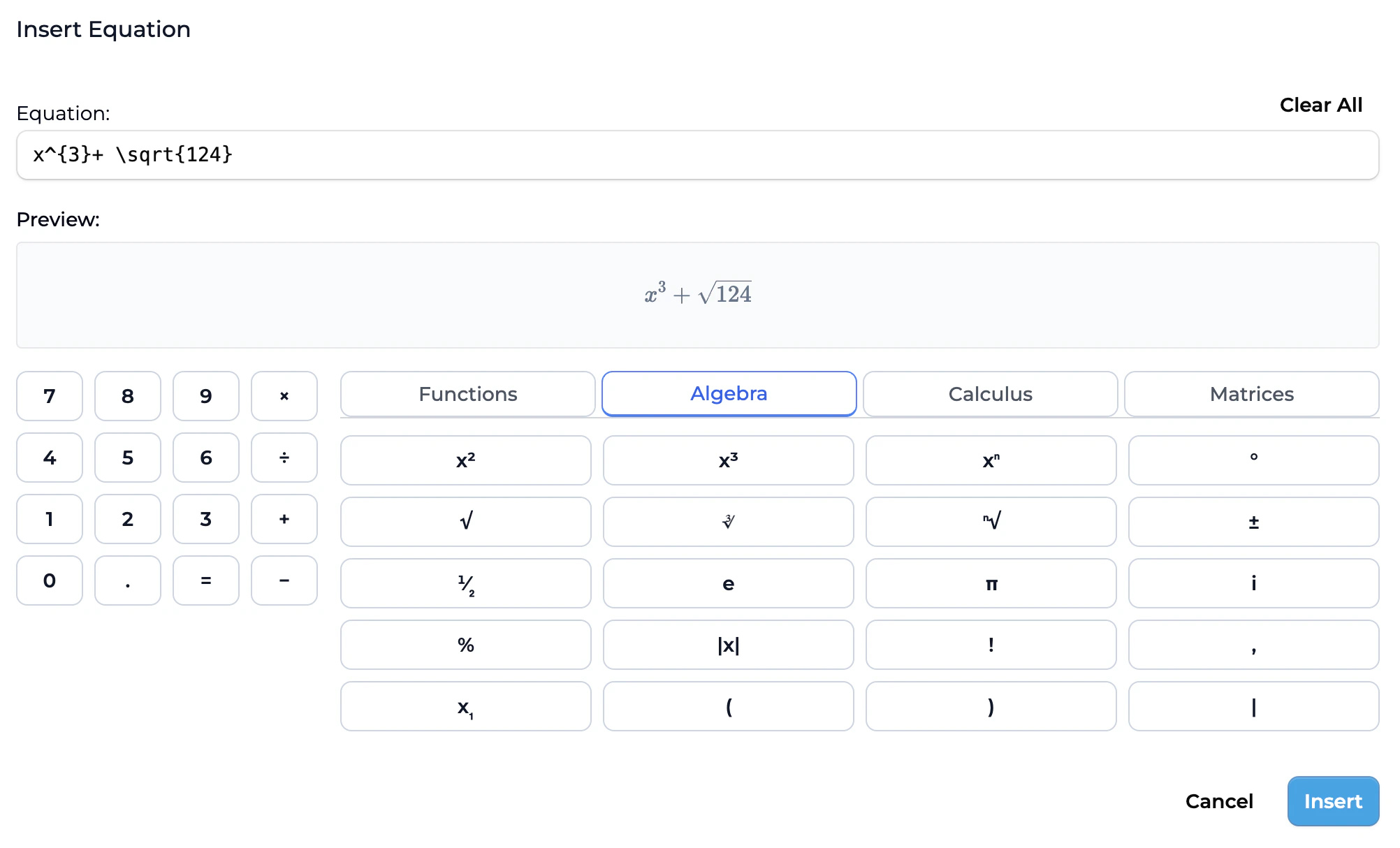
- Click number buttons (0-9) to enter digits
- Use operation buttons (+, -, ×, ÷, =) for basic operations
- Select from function categories: Functions, Algebra, Calculus, Matrices
- Click specific functions like sin, cos, tan, log, ln, exp, etc.
Preview Your Equation
The Preview section shows how your equation will appear in properly formatted mathematical notation.
Insert the Equation
Once you’re satisfied with your equation, click the Insert button to add it to your chat message.
Best Practices
Choose the Right Function Categories
Choose the Right Function Categories
The equation editor organizes functions into categories for easy access:
- Functions: Basic trigonometric and logarithmic functions (sin, cos, tan, sec, arcsin, arctan, log, ln)
- Algebra: Algebraic operations and expressions (cos, cot, sinh, cosh)
- Calculus: Calculus-specific notation (tan, arcsin, cosh, tanh)
- Matrices: Matrix operations and absolute value (csc, arccos, tanh, |x|)
Use the Preview Feature
Use the Preview Feature
Always check the Preview section before inserting your equation. This ensures that your mathematical notation appears exactly as you intended and helps catch any formatting issues before you send your message.
Combine with Text for Context
Combine with Text for Context
While the math input creates properly formatted equations, remember to include explanatory text in your message to provide context. For example: “Solve this equation for x:” followed by your inserted equation, or “What is the derivative of” followed by your function notation.
Start Simple, Build Complex
Start Simple, Build Complex
For complex equations, start by entering the basic structure and then add more sophisticated elements. The equation editor makes it easy to build up complicated expressions step by step rather than trying to enter everything at once.
Leverage for Teaching and Learning
Leverage for Teaching and Learning
Math inputs are particularly powerful for:
- Creating practice problems with proper notation
- Demonstrating step-by-step solutions
- Generating worksheets with correctly formatted equations
- Explaining mathematical concepts with precise notation
Known Issues
As this feature is currently in beta, there are a few known limitations to be aware of:Multiple Equations in One Message
Multiple Equations in One Message
Issue: Do not try to insert more than one equation at a time in the same message. While multiple equations may look correct in the text input field, they will not display with proper formatting in the chat.Workaround: Insert a new line using Shift + Enter after each equation before inserting the next one. This will ensure each equation renders correctly in the chat display.Example:
- Insert first equation
- Press Shift + Enter to create a new line
- Insert second equation
Keyboard Deletion Issues
Keyboard Deletion Issues
Issue: If you delete characters using your keyboard (backspace or delete keys) while editing an equation in the text input field, the equation may not parse correctly and will display an error.Workaround: If you need to modify an equation after inserting it:
- Clear the entire equation from the text input
- Click the calculator icon to open the equation editor again
- Rebuild the equation from scratch using the editor interface
Frequently Asked Questions
How does the equation formatting work?
How does the equation formatting work?
The math input editor uses a two-step process to convert your visual equation building into beautifully formatted mathematical notation:
-
LaTeX Conversion: As you click buttons and build your equation in the editor, your input is automatically converted into LaTeX markup. LaTeX is the standard mathematical typesetting language used in academic and scientific publishing. For example, when you click “sin” and then “x”, the editor generates the LaTeX code
\sin(x). - KaTeX Rendering: Once the LaTeX notation is generated, it’s rendered using KaTeX, a fast and lightweight mathematical rendering library. KaTeX takes the LaTeX code and transforms it into crisp, professional-quality mathematical notation that displays perfectly in your browser.
What types of mathematical notation can I input?
What types of mathematical notation can I input?
The math input feature supports:
- Basic arithmetic operations (+, -, ×, ÷)
- Exponents and powers (x², y³)
- Trigonometric functions (sin, cos, tan, sec, csc, cot)
- Inverse trigonometric functions (arcsin, arccos, arctan)
- Hyperbolic functions (sinh, cosh, tanh)
- Logarithms (log, ln)
- Exponential functions (exp)
- Absolute value (|x|)
- Matrix notation
- Algebraic expressions and equations
Can I edit an equation after inserting it?
Can I edit an equation after inserting it?
Currently, once an equation is inserted into your message, you would need to use the equation editor again to create a corrected version. We recommend using the preview feature to verify your equation before inserting it.
Do I need any special keyboard or software?
Do I need any special keyboard or software?
No, the math input feature works entirely within your web browser using the built-in equation editor. You don’t need any special mathematical keyboards, LaTeX knowledge, or additional software installations.
Do I need to know LaTeX to use this feature?
Do I need to know LaTeX to use this feature?
No! That’s the beauty of the math input editor. While the feature uses LaTeX notation internally and KaTeX for rendering, you never need to write or understand LaTeX code. The visual equation editor handles all the conversion and formatting for you automatically. Simply click the buttons and build your equations visually, and the system takes care of:
- Converting your input into proper LaTeX notation
- Rendering the LaTeX using KaTeX for beautiful display
- Ensuring your equations are formatted correctly
Can I use this feature on mobile devices?
Can I use this feature on mobile devices?
Yes, the math input feature is available on mobile devices through the Playlab mobile app. The equation editor interface is optimized for touch input on smaller screens.
Will my equations work with all Playlab apps?
Will my equations work with all Playlab apps?
Yes, mathematical notation entered through the math input feature works across all Playlab apps. Any app that can process mathematical content will correctly interpret the equations you insert.
Can I copy equations from other sources?
Can I copy equations from other sources?
The equation editor is designed for building equations from scratch using its interface. If you have equations in other formats (like LaTeX or plain text), you’ll need to recreate them using the editor buttons and functions.
Is there a limit to equation complexity?
Is there a limit to equation complexity?
While there’s no strict limit on equation complexity, extremely long or deeply nested expressions may be challenging to build in a single equation input. For very complex mathematical content, consider breaking it into multiple equations or steps.
We Want Your Feedback!
Thank you for trying out Math Inputs in Playlab. Our hope is to make mathematical notation input even more seamless and effective moving forward. We’d love to hear from you as this feature is still in beta. Contact us at support@playlab.aiLast updated: October 29, 2025